
Notes
Use notes as a scratchpad during an engagement: command output, screenshots, checklists, and anything else you do not want in the final PDF. You organize them in a free-form tree.
The report (sections and findings) is the structured deliverable. It follows the project design and is what you publish for the client.
SysReptor has two note areas:
- Project notes: accessible by all project members, follows the project life cycle
- Personal notes: accessible only by you
Organizing notes
Drag notes in the sidebar to reorder them or move them under another note. Any note can have child notes.
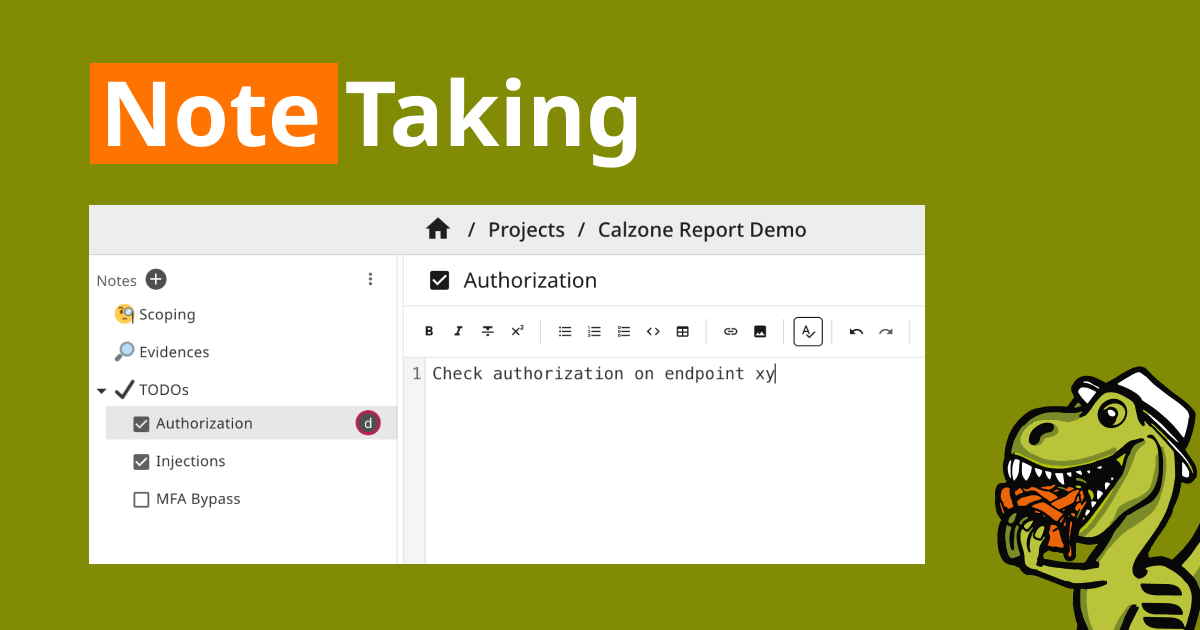
Click the checkbox on a note to cycle through unchecked, checked, and emoji. On project notes, you can also set an assignee for ownership during the engagement.
Project notes are included in Version History. Personal notes are not.
Note types
Pick a type from the Add menu when creating a note.
Text notes use the same markdown as report fields. Paste images, upload files, and paste command output as you go.
Excalidraw notes open an embedded Excalidraw canvas for diagrams and sketches.
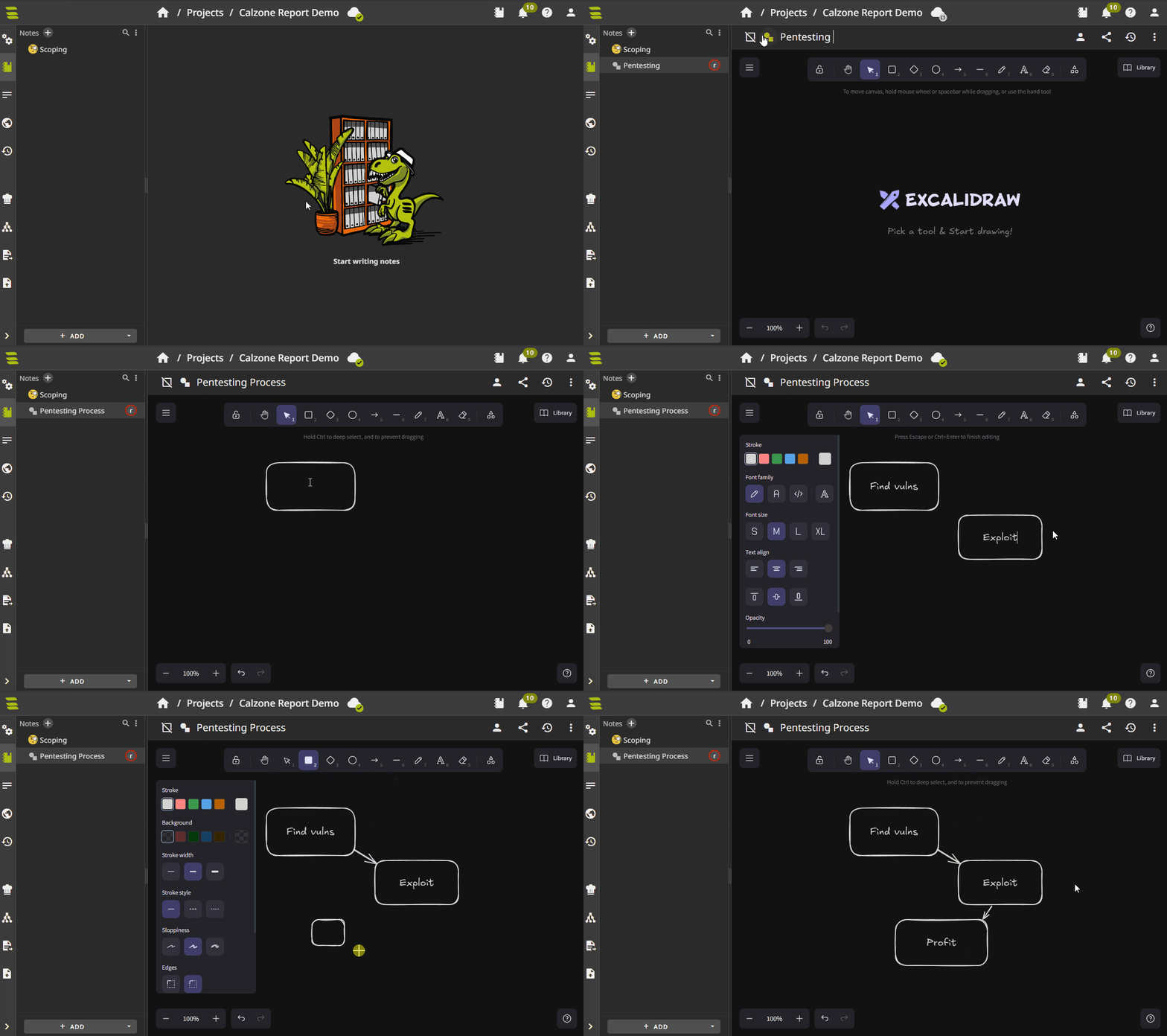
Collaborative editing
Pro onlySeveral pentesters can edit the same note at once; changes sync in real time. See Collaborative Editing.
Sharing
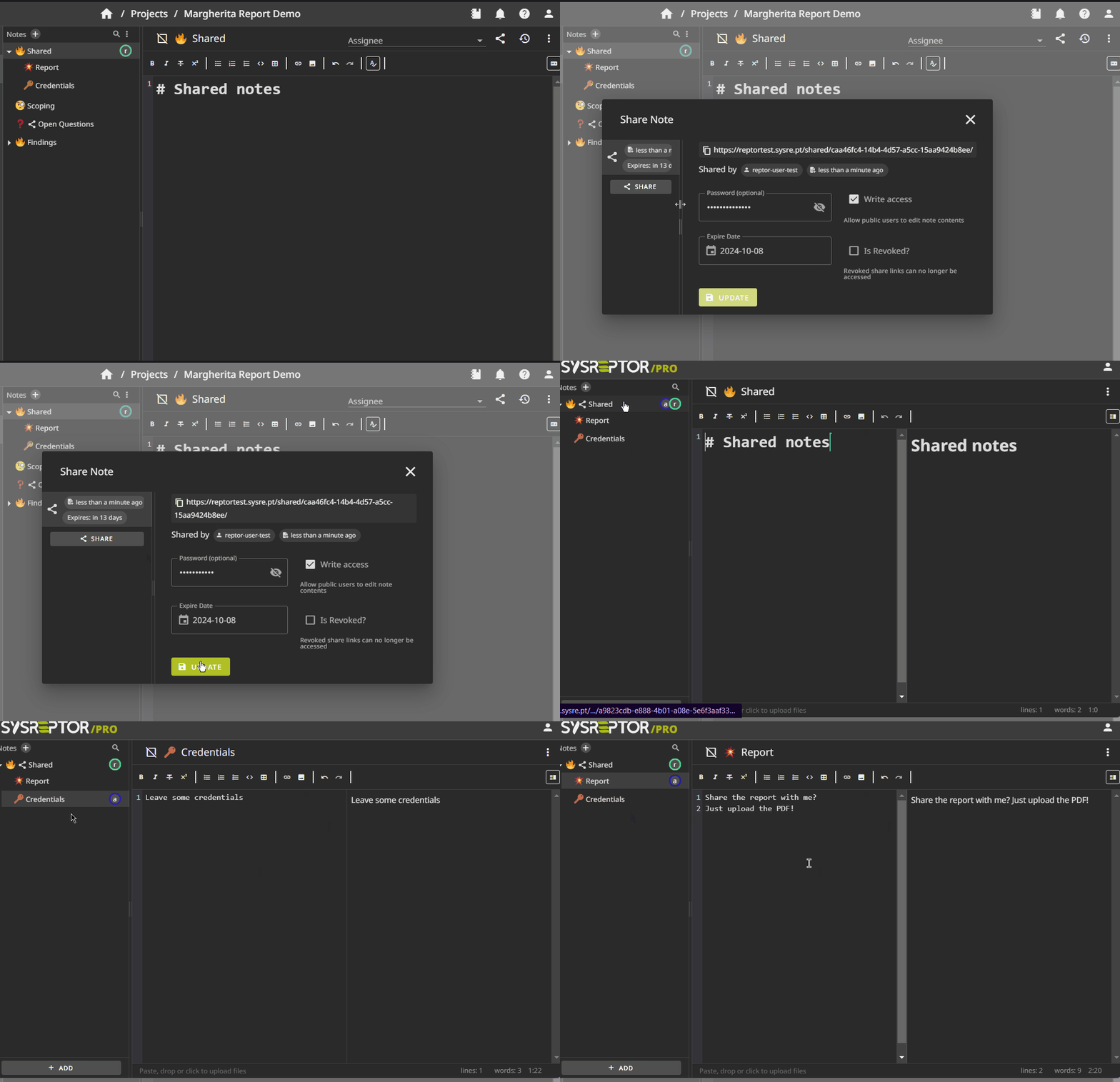
Use the share button on a note to give someone without a SysReptor login access via a public link. The link includes that note and all of its children.
You can create multiple links per note. Each link has its own settings:
- Password: Optional. Visitors must enter the password in addition to opening the link.
- Expire date: The link expires after this date.
- Read-only or read-write access: When write access is enabled, visitors can edit note contents; otherwise the link is read-only.
- Revoked: Disable the link immediately without deleting it.
- Comment: Optional, internal comment about the share link to tell links apart and document with whom the link was shared.
The link exposes the note and its children, plus files and images that were linked in that tree when the share was created, and any files uploaded through that share. Editing notes (by visitors or project members) cannot automatically pull in other existing project or personal files. If someone references a file that is not yet on the share, project members can use Review shared files to approve it and make it visible on the link. To expose a file without approval, re-upload it to the shared note tree.
On Publish, Share by Link generates the report PDF, creates a project note with the file attached, and opens the same sharing dialog so you can send the PDF to the client.
Instance administrators can turn off note sharing with DISABLE_SHARING in Application Settings or app.env.
Downloading files
Files attached to a note are downloaded by clicking the file link in the preview.
Corporate proxies and firewalls often inspect downloads and block the files pentesters work with, such as tool output, captures or proof of concept code. Right-click a file link and choose Download via encrypted channel to work around this.
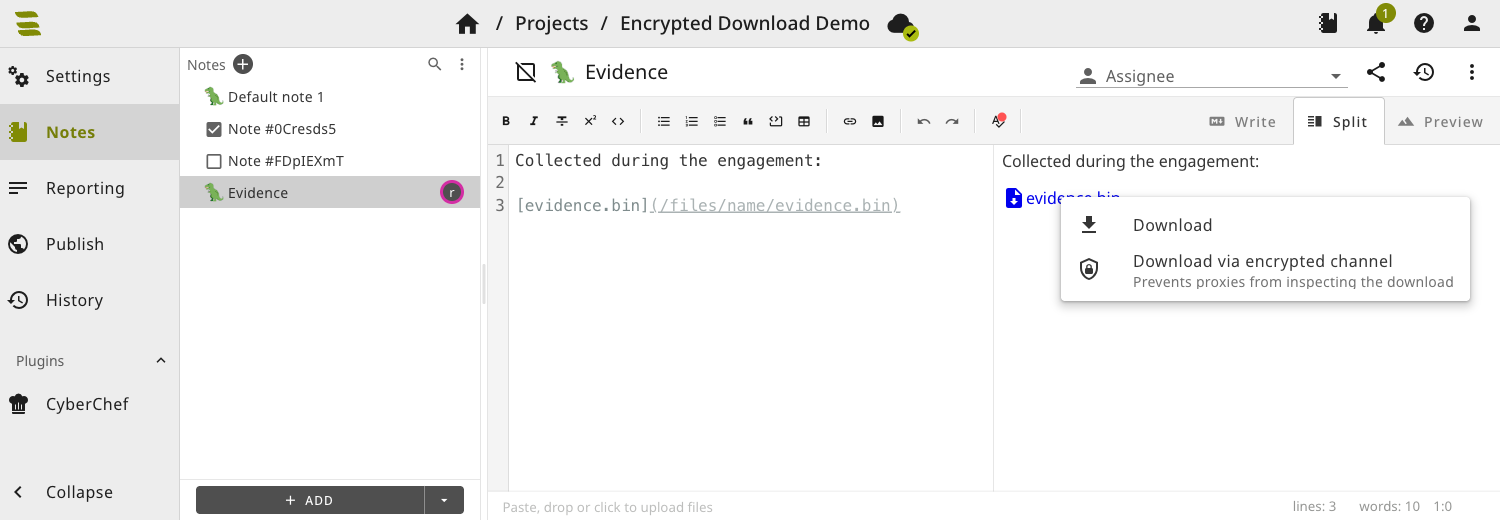
The file is then transferred as an encrypted text stream and decrypted in your browser. Proxies see neither the file content, nor its content type, nor its filename. The key is generated by your browser for every download, so a recorded response cannot be decrypted afterwards.
The stream is compressed, so an encrypted download transfers roughly the same number of bytes as a normal one.
This hides the download from proxies that inspect content. It is not a protection against a proxy that intercepts TLS and specifically targets SysReptor, because the key is sent over the same connection.
Import and export
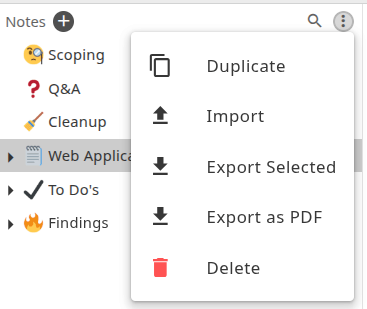
Select one or more notes and use the menu in the sidebar to export them as a .tar.gz archive, export as PDF, copy, or delete. Click "Import" in the same menu or drag-and-drop files to import a .tar.gz archive into notes.
Example note packs
Download a notes pack and import it into project or personal notes:
- Report-writing AI agent skill: Agent skill only; see AI agent
- OWASP WSTG checklist: Web testing checklist
- Certification notes: Prep / exam structure (includes the agent skills tree)
- Demo notes: Scoping, Q&A, cleanup, to-dos (includes the agent skills tree)